










Hey there! If you enjoy trying out new software or if you’re a developer working on apps, you’ll definitely want to enable virtualization in Windows 11. Virtualization lets your computer run several operating systems at the same time. It’s like having many computers all in one! So, let’s dive into how to turn on this cool feature.
What Exactly is Virtualization?
Basically, virtualization makes it possible for your computer to create virtual spaces where you can run different operating systems or applications. Imagine splitting your computer’s resources so that each virtual machine (VM) behaves like its own computer. This is super helpful! You can test software, run older versions of an OS, or even increase security.
Step 1: Check If Your PC Can Handle Virtualization
First, you’ll want to see if your computer supports virtualization. Most modern CPU’s do, but let’s make sure.
- Task Manager: Hit Ctrl + Shift + Esc to open Task Manager. Click on the Performance tab. Under CPU, look to see if it says Virtualization is enabled or disabled.
- System Information: Press Win + R, type msinfo32, & hit Enter. Search for Virtualization Enabled in Firmware.
If it’s not turned on—don’t worry! We can fix that in the BIOS.
Step 2: Turn On Virtualization in BIOS/UEFI
Now we know your PC supports it; let’s activate virtualization in BIOS/UEFI settings. Don’t stress—it sounds harder than it really is!
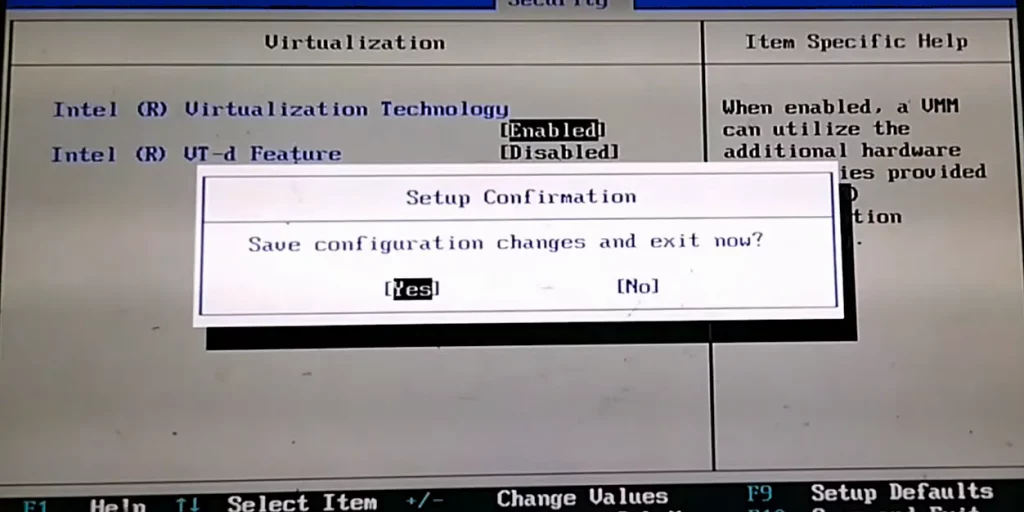
- Restart your PC and press the BIOS key (usually F2, F10, DEL, or ESC). You’ll see which one on the startup screen.
- Once inside BIOS, find either the Advanced menu or CPU Configuration settings.
- Look for Intel VT-x (for Intel CPUs) or SVM Mode (for AMD CPUs) and turn it on.
- Save those changes & exit!
There you go! You’ve just enabled virtualization in your BIOS.
Step 3: Turn On Hyper-V (Optional)
If you want to use Microsoft’s own virtualization called Hyper-V, you will need to switch that on too.
- Press Win + X to open Apps & Features.
- Click Optional Features and then select More Windows Features.
- In the Windows Features window, check Hyper-V and hit OK.
- Restart your PC again!
Now Hyper-V is set up and ready for action!
Step 4: Make Sure Everything Works
Let’s verify that virtualization is fully turned on now.
- Open Task Manager again by pushing Ctrl + Shift + Esc.
- Go back to the Performance tab and click on CPU. Down below, you should see Virtualization: Enabled.
Awesome! Now you can start running virtual machines!
Step 5: Begin Using Virtual Machines
With virtualization now enabled in Windows 11, it’s time to install & run virtual machines. Whether you’re using Hyper-V or other apps like VirtualBox, here’s what to do:
- For Hyper-V: Open Hyper-V Manager, create a new virtual machine, and follow the prompts.
- For VirtualBox: Download & install VirtualBox, then create a new VM by clicking New.
Conclusion
Enabling virtualization in Windows 11 is super useful! It can help with productivity too—whether you’re testing software or exploring different operating systems. Just follow these easy steps on how to enable virtualization in Windows 11, and you’ll be ready with virtual machines in no time. So go ahead—enable virtualization and discover what your Windows 11 machine can really do!


