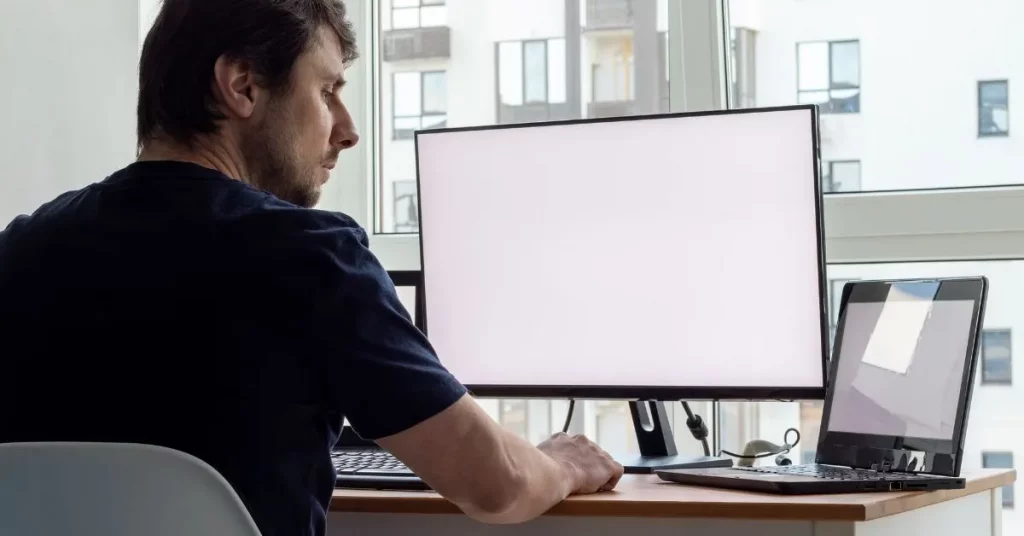










Ever sat down at your computer only to see a weird blue tint on the screen? Annoying, huh? This blue tint on Windows 10 can really mess up your workflow. It’s hard to read text or watch videos. But don’t worry, fixing this problem isn’t that hard. Let’s go through some simple steps to fix the blue tint on Windows 10 and get your screen looking normal again.
Check Your Night Light Settings
Windows 10 has something called “Night Light.” It’s supposed to reduce blue light in the evenings. But if it’s not set right, it might make your screen look too tinted. Here’s how to check:
- Go to Settings by pressing Windows + I.
- Navigate to System & then click Display.
- Look for Night Light settings under “Brightness and color.”
- If Night Light is on, toggle it off or lower its strength.
If the blue tint goes away, problem solved! If not, let’s try something else.
Update Your Graphics Driver
Outdated or corrupted graphics drivers can cause display problems like blue tinting. Updating them could help.
Here’s what you’ll do:
- Press Windows + X and click Device Manager.
- Scroll down to Display Adapters & click the arrow.
- Right-click on your graphics driver (like Intel, NVIDIA, or AMD).
- Select Update Driver and then Search automatically for updated driver software.
Windows will look for the latest drivers and install them if there are any updates. Restart your computer and check if the blue tint is gone.
Calibrate Your Display
Sometimes display settings are just off. Luckily, Windows 10 has a tool to recalibrate your screen.
To access it:
- Open Settings (Windows + I) & go to System > Display.
- Scroll down to Advanced Display Settings and select Color Calibration.
Follow the instructions to adjust color balance and brightness.
**Check The Cable And Monitor ConnectionSometimes it’s not a software issue but a hardware one instead.
Here’s what you’ll check:
- Ensure display cables (HDMI, DisplayPort, etc.) are securely connected.
- Try using different cables or ports.
- Test monitor on a different computer if possible.
If the problem persists only on your current computer, it’s probably not the monitor itself.
Adjust Your Monitor Settings
Your monitor might have its own color settings causing the tint. Most monitors have an OSD menu with options for brightness, contrast & color temperature.
To access it:
- Look for buttons on your monitor (usually along the bottom or side).
- Navigate to Color Settings or Picture options.
- Adjust Color Temperature from “Cool” to “Normal” or “Warm.”
Run The Windows Troubleshooter
When in doubt, use Windows 10’s built-in troubleshooter!
To run it:
- Open Settings (Windows + I) and go to Update & Security.
- Click Troubleshoot in the left panel.
- Under Find and Fix Other Problems, select Hardware and Devices & click Run the troubleshooter.
Follow the prompts; if Windows detects any problems, it’ll fix them or guide you through a solution.
Reset Windows Display Settings
If nothing works, try resetting display settings to default values.
Here’s how:
- Right-click on the desktop & select Display Settings.
- Scroll down & click Advanced display settings.
- At the bottom of this menu, click Display adapter properties for Display 1.
- Go to Color Management tab & click Color Management.
- Under Devices tab, click Reset or uncheck “Use my settings for this device.”
Wrapping It Up
Fixing a blue-tinted screen in Windows 10 might be annoying but it’s definitely doable with some patience! Whether it’s software or hardware causing this issue, these steps should help you sort it out.
Let me know how these solutions work for you! If you’re still having trouble with that pesky blue tint on Windows 10, don’t hesitate to reach out. Tech can be tricky but with a bit of perseverance, your screen will be back to normal in no time!
Happy troubleshooting!