










If you buy a new PC with Windows 11 Home already installed, get ready to be frustrated. This version of Windows (we could call it “Windows for Budget Users”) doesn’t have the features you need to do serious work.
An option that used to work is, unfortunately, no longer available. In the past, you could use an old product key from Windows 7 Pro, Windows 7 Ultimate, or Windows 8/8.1 Pro to upgrade or do a clean install from Windows 10 Home to Windows 10 Pro. This trick could help you avoid paying for the upgrade. However, Microsoft stopped this option in September 2023 when it ended its free Windows 10 upgrade program.
You might be thinking about, how to upgrade from Windows 11 Home to Pro Now, In this blog we are going to show you the easy way to upgrade your Windows 11 Home to Pro.
Let’s First Know Why You Are Going To Upgrade To Windows Pro
First Reason Is Advanced Security Features
Windows Pro includes advanced security features like BitLocker encryption, which adds an extra layer of protection for your data. BitLocker helps keep your files safe by encrypting the entire drive, making it nearly impossible for unauthorized users to access your data, even if your device is lost or stolen. Unlike Windows Home, which lacks this feature, Windows Pro ensures your sensitive information remains secure. This is particularly useful for businesses and professionals who handle confidential data. With BitLocker, you have peace of mind knowing that your personal and work files are protected against potential security threats and breaches.
Remote Desktop
Windows Pro comes with Remote Desktop, a feature that allows you to access your PC from anywhere, a capability not available in the Home version. With Remote Desktop, you can connect to your computer securely from another device, making it easier to work remotely, access files, or run applications as if you were sitting right in front of your PC. This feature is particularly useful for professionals, IT administrators, and businesses that need to provide remote support or manage multiple machines. By using Remote Desktop, you can stay productive and connected, no matter where you are, without any extra software.
Group Policy Management
Group Policy Management in Windows Pro allows you to control and manage settings for all users within your organization. This feature enables administrators to define and enforce policies across multiple computers and user accounts efficiently. By using Group Policy, you can configure security settings, software installations, and system configurations centrally, ensuring consistent and compliant environments. Whether you need to restrict access to certain features or deploy software updates, Group Policy Management streamlines administrative tasks and enhances overall management efficiency in a networked environment. This centralized approach helps maintain security standards and operational consistency across your organization.
Hyper-V
Hyper-V is a powerful feature exclusive to Windows Pro that allows you to run virtual machines on your computer. With Hyper-V, you can create and manage multiple virtual environments, each with its operating system and applications. This capability is ideal for testing software, running different OS versions, or isolating applications without affecting your main system. Hyper-V offers flexibility and efficiency for IT professionals, developers, and power users, providing a robust platform for virtualization directly from your Windows Pro desktop. By leveraging Hyper-V, you can optimize your workflow and make the most of your computing resources.
Below We Add A Comparison Chart That Highlights The Key Differences Between Windows Home And Pro
| Feature | Windows Home | Windows Pro |
| BitLocker Encryption | No | Yes |
| Remote Desktop | No | Yes |
| Group Policy Management | No | Yes |
| Hyper-V | No | Yes |
| Assigned Access | No | Yes |
| Windows Update for Business | No | Yes |
Now Let’s Discuss The Main Topic How To Upgrade Windows Home To Pro
There Are 3 Methods
- Upgrade via Microsoft Store
- Using a Product Key
- Volume Licensing for Businesses
Let’s go through each method in detail.
Method 1: Upgrade Via Microsoft Store
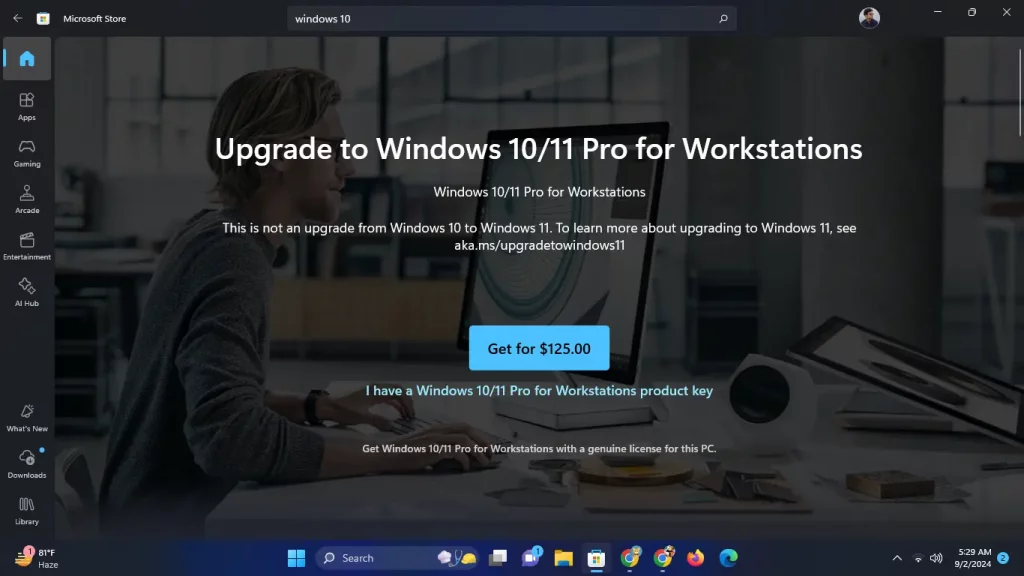
Upgrading to Windows 10 or 11 Pro through the Microsoft Store is easy if you don’t already have a Pro license key. Here’s how you can do it:
- Open Settings: Go to the “Settings” menu on your PC, then select “Update & Security,” and click on “Activation.”
- Go to the Microsoft Store: Click on the “Go to Microsoft Store” link. This will take you to the page where you can buy the Pro upgrade.
- Buy the Upgrade: Click the purchase button and follow the steps shown on the screen. The upgrade usually costs around $99.
- Restart Your PC: After the upgrade is done, restart your PC to finish the process.
Method 2: Upgrade Using A Product Key
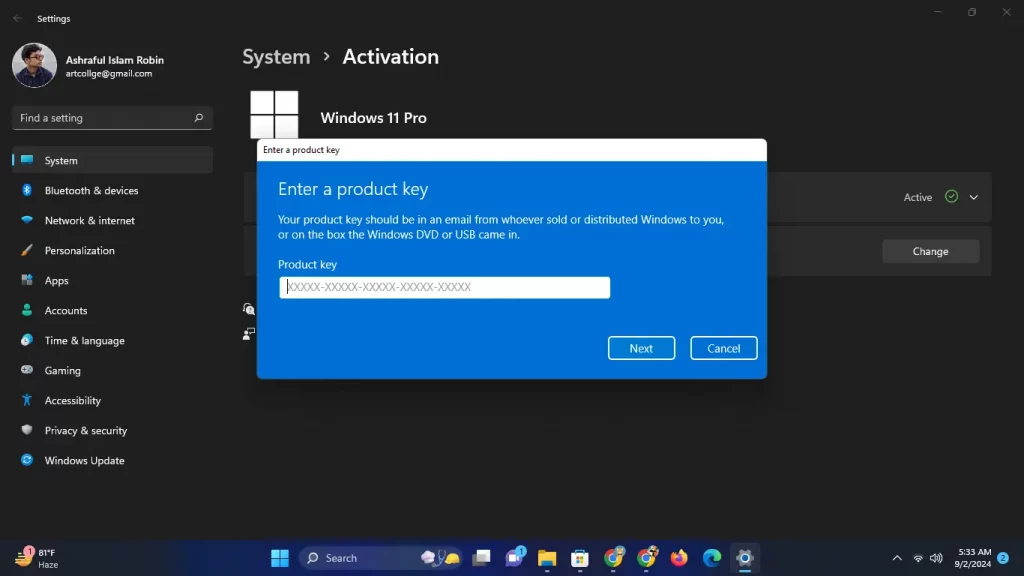
Upgrading to Windows Pro using a product key is simple if you already have a valid key:
- Open Settings: Navigate to Settings > Update & Security > Activation.
- Enter Product Key: Click on “Change product key,” input your 25-digit Windows Pro key, and click “Next.”
- Follow the Prompts: Windows will verify the key and start the upgrade process.
- Restart Your PC: Once the upgrade is complete, restart your computer to finalize the installation.
This method ensures a smooth transition to Windows Pro with your existing key.
Method 3: Volume Licensing For Businesses
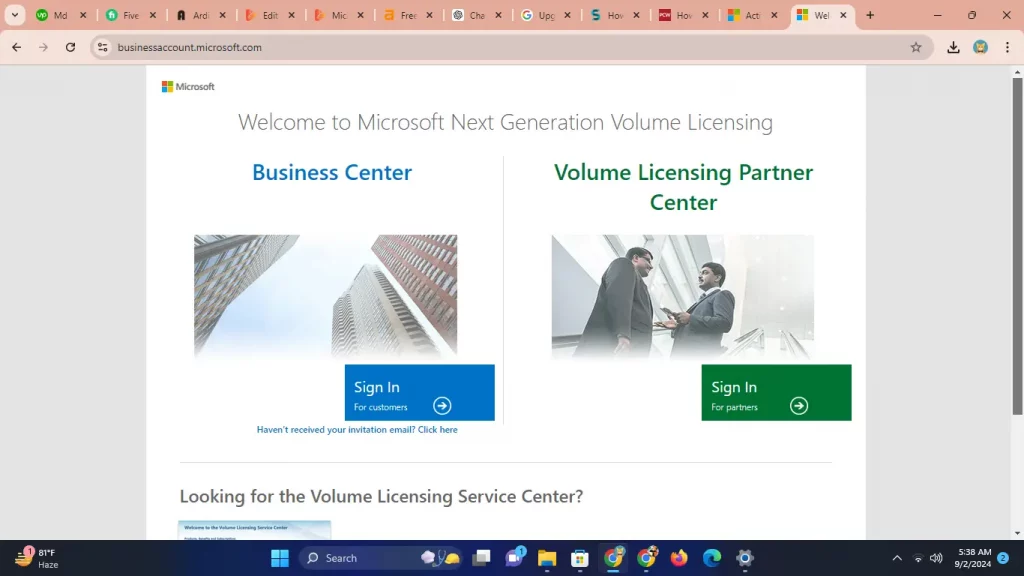
For organizations upgrading multiple PCs, volume licensing is the most efficient approach:
- Obtain Volume License: Reach out to your Microsoft Volume Licensing Service Center (VLSC) representative to purchase the necessary licenses.
- Install Windows Pro: Download and install the Windows Pro upgrade from the Volume Licensing Service Center.
- Activate Licenses: Use either the Key Management Service (KMS) or Multiple Activation Key (MAK) to activate the licenses across your organization’s PCs.
This method streamlines the upgrade process for large-scale deployments, making it easier to manage and activate multiple installations.
Here Is The 3 Windows Baying Link
Windows 11 Pro Key – Lifetime License
Windows 11 Home – Lifetime License
Troubleshooting Common Upgrade Issues
Upgrading to Windows Pro can sometimes come with a few bumps along the way. If you encounter Error Code 0xC004F050, it often means there’s a problem with your product key—double-check the key or get in touch with Microsoft support. If you face compatibility issues, ensure your device meets the hardware requirements for Windows Pro. If the upgrade stalls or freezes, try restarting your PC. You can also run the sfc /scannow command to check for system errors. These steps should help you troubleshoot and resolve common upgrade problems.
After Upgrading To Windows Pro, You Can Use Its New Features To Improve Security And Productivity.
Here are some tips to help you make the most of Windows Pro:
- Set Up BitLocker Encryption: Go to Settings > Update & Security > Device encryption to turn on BitLocker. This will keep your data safe with enhanced encryption.
- Enable Remote Desktop: Go to Settings > System > Remote Desktop and turn it on. This allows you to access your PC from anywhere.
- Configure Group Policy Management: Use the Group Policy Editor (gpedit.msc) to create and manage settings for different users in your organization.
- Install Hyper-V: Go to Control Panel > Programs > Turn Windows features on or off, and check the Hyper-V box to enable virtualization features.
FAQs
1. Can I downgrade from Windows Pro to Home if needed?
Yes, but you will need to perform a clean installation of Windows Home, which means backing up all your data.
2. How long does the upgrade process take?
The process usually takes around 30 minutes to an hour, depending on your internet speed and system performance.
3. Are my files and apps safe during the upgrade?
Yes, your files and apps will remain intact. However, it is always recommended to back up important data before making significant system changes.
Final Thoughts
Upgrading from Windows 11 Home to Pro is a worthwhile investment for users seeking advanced features that enhance security, productivity, and management capabilities. Whether you’re a power user or a business administrator, this guide on how to upgrade from Windows 11 Home to Pro will help ensure a smooth transition and maximize the benefits of Windows Pro. We strive to keep this guide updated and encourage you to engage with our community in the comments section. Share your experiences or ask any questions you may have about upgrading from Windows Home to Pro below!


