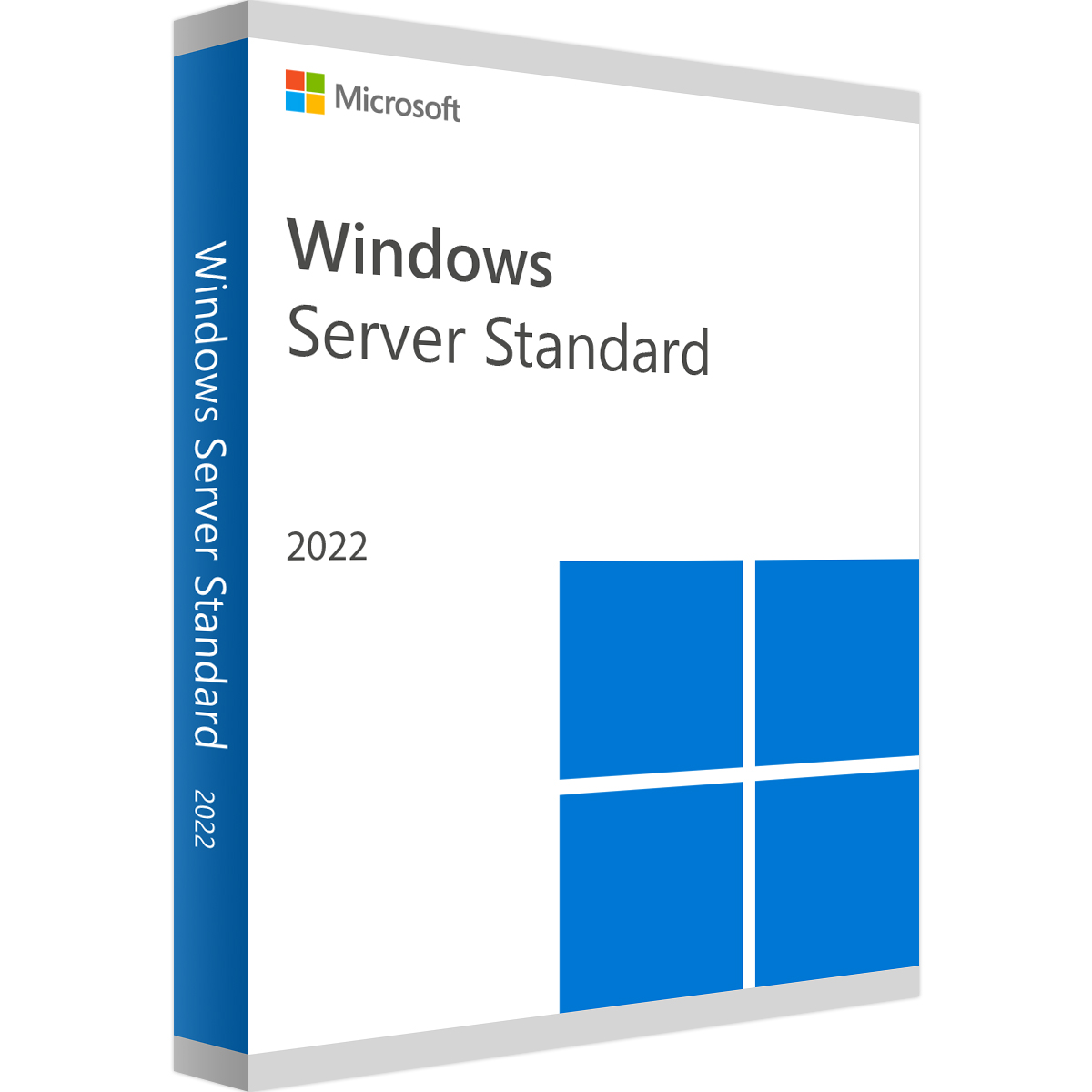
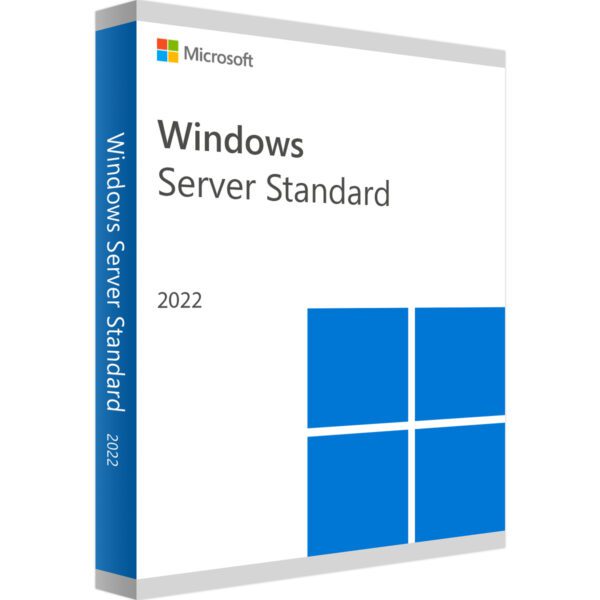
Windows Server 2022 Standard
We are a certified Microsoft Partners
Click to verify
Click to verify
Digital license key delivered via email, including a step-by-step guide & download link.
Windows Server 2022 Standard Key offers advanced security, high-performance capabilities, and scalability to support your business infrastructure. Ideal for managing workloads, virtual machines, and secure data environments, this server solution ensures seamless operations for enterprises of all sizes.
- Safe and secure payment guaranteed
We are a certified Microsoft Partners
Click to verify
Click to verify
Digital license key delivered via email, including a step-by-step guide & download link.
Windows Server 2022 Standard Key offers advanced security, high-performance capabilities, and scalability to support your business infrastructure. Ideal for managing workloads, virtual machines, and secure data environments, this server solution ensures seamless operations for enterprises of all sizes.
| Duration |
Lifetime |
|---|---|
| Devices |
1 PC |
| Activation |
Online |
| Warranty |
1 year |
| Brand |
Microsoft |
- Safe and secure payment guaranteed
Reviews
Real reviews from verified buyers to help you make the best choice.
Fast and reliable! Bought a Microsoft Office 2021, and the process was smooth and quick.
Paul Dean, 🇬🇧
Their service is straightforward, and they deliver what they promise. No frills, just good products and responsive support when needed.
Gail Schloss, 🇨🇦
Super expérience avec Licengo ! Achat de logiciel Microsoft et clé de licence reçue instantanément. Service et support excellents. Je recommande vivement !
Henry tKint, 🇧🇪
Licengo delivers excellent digital products with prompt service and professional communication. Highly reliable partner!
Darrell Carnell, 🇨🇦
I recently purchased Office 2021 Pro Plus from Licengo, and the experience was flawless! The process was quick and simple, and I received my product key within minutes only. Installation was smooth, and the software works perfectly. Great value for money and excellent customer service. Highly recommend!
Sandra, 🇬🇧
Windows Server 2022 Standard is the ninth version of Microsoft’s Windows Server operating system, belonging to the Windows NT family. It follows the Windows 10 platform, succeeding Windows Server 2016 and Windows Server 2019 Standard. Released on August 18, 2021, it introduces advancements in security, hybrid cloud integration, and infrastructure efficiency for modern IT environments.
Windows Server 2022 introduces several new features and improvements across different areas:
Container Services
- Kubernetes Support: Stable support for Kubernetes version 1.14.
- Support for Tigera Calico for Windows: Enhances network policies and security for Kubernetes environments on Windows.
- Linux Containers on Windows: Allows running Linux containers natively on Windows Server.
Storage
- Direct Storage Spaces: Enables direct access to Storage Spaces Direct volumes from user mode processes, enhancing performance and scalability.
- Storage Migration Service: Simplifies migration of servers and their data to newer versions of Windows Server.
- Storage Replica: Provides synchronous replication between servers for disaster recovery and high availability.
Security
- Shielded Virtual Machines: Enhances security for virtual machines by encrypting their disks and protecting their state from inspection even by malicious administrators.
- Enhanced Windows Defender Advanced Threat Protection (ATP): Improves threat detection and response capabilities to safeguard against advanced persistent threats.
Administration
- Windows Admin Center: Centralized management tool for servers, clusters, and hyper-converged infrastructure, offering a modern and simplified administrative experience.
- Configuration Diagnostics: Tools to diagnose and troubleshoot server configurations more effectively.
- OpenSSH Included: Native support for OpenSSH for secure remote management and administration.
These features make Windows Server 2022 a robust choice for modern data centers, offering enhanced security, improved storage capabilities, and streamlined administration tools to meet the demands of today’s IT environments.
Installation options for Windows Server 2022 include:
Server Core: This is the recommended option, featuring a smaller footprint that includes essential Windows Server components. Server Core supports all server roles but lacks a local graphical user interface (GUI). It is ideal for “headless” deployments managed remotely via Windows Admin Center, PowerShell, or other server management tools.
Desktop Experience Server: This option provides the full installation of Windows Server 2022, including a comprehensive graphical user interface (GUI). It is suited for users who prefer a traditional desktop environment and need direct access to GUI-based management tools and applications.
These installation choices allow flexibility based on your operational needs, whether prioritizing minimal resource consumption and remote management or requiring a complete GUI for local administration and user interaction.
| Duration |
Lifetime |
|---|---|
| Devices |
1 PC |
| Activation |
Online |
| Warranty |
1 year |
| Processor |
1.4 GHz or faster (64-bit) |
| Memory |
512 MB for Server Core 2 GB for Server with Desktop Experience, ECC type or similar for physical host deployments |
| Hard Disk |
32 GB of free space |
| Display |
Super VGA (1024 x 768) or higher-resolution |
| Brand |
Microsoft |
9 reviews for Windows Server 2022 Standard
Clear filtersShow only reviews in English (3)
Frequently Asked Questions
What are the key features of Windows Server 2022 Standard?
- Advanced multilayer security with secured-core server.
- Improved hybrid capabilities with Azure for seamless cloud integration.
- Faster and more secure HTTPS connections.
- SMB (Server Message Block) compression to enhance file transfer efficiency.
- Enhanced support for containers and Kubernetes
What are the system requirements for Windows Server 2022 Standard?
- Processor: 1.4 GHz (64-bit) with compatible processors.
- RAM: Minimum 2 GB (ECC supported); 512 MB for installation options without a GUI.
- Disk Space: At least 32 GB.
- Network: Gigabit Ethernet adapter with PXE support.
What is the difference between Windows Server 2022 Standard and Datacenter editions?
The Standard edition is suitable for environments with limited virtualization needs, while the Datacenter edition offers unlimited virtualization and advanced features like software-defined networking (SDN) and storage spaces direct.
How many virtual machines can I run on Windows Server 2022 Standard?
Windows Server 2022 Standard allows you to run up to two virtual machines and one Hyper-V host per license.
Is Windows Server 2022 Standard compatible with Azure?
Yes, Windows Server 2022 Standard provides hybrid capabilities with Azure for enhanced management, backup, and disaster recovery.
Does Windows Server 2022 Standard support containerization?
Yes, it supports Windows containers with Kubernetes enhancements and reduced overhead for application modernization.
How is Windows Server 2022 licensed?
It is licensed per core, with a minimum requirement of 16 cores per server and 8 cores per processor.
What security enhancements does Windows Server 2022 Standard offer?
- Secured-core server with advanced protection.
- Support for TLS 1.3 and HTTPS for improved encryption.
- Windows Defender updates for real-time threat protection.
Where can I buy or download Windows Server 2022 Standard?
You can purchase Windows Server 2022 Standard through Microsoft’s official website, authorized resellers, or volume licensing channels. A trial version is also available for download from Microsoft’s official site.
Downloading and installing Windows Server 2022 Standard might seem like a daunting task, especially with limited IT skills. But don’t worry, this guide breaks down all the steps you need to download, install, and activate Windows Server 2022.
The process is relatively simple and can be completed by most people with a modicum of IT knowledge. The following steps walk you through the process.
Step 1 – Downloading Your Copy of Windows Server 2022
The first step is to download your software. There is a link to the Microsoft download site in the email we sent with your Genuine Microsoft Product Key. Don’t worry if you don’t have the details to hand – The following link will take you to the correct web page:
Download Windows Server 2022 Standard
Once on the page, scroll down until you see the heading – Get started for free. You will see a link that says Download the ISO – click this link and follow the instructions to download the ISO file.
Step 2 – Prepare Your ISO File
An ISO file contains all the files and programs required to install your copy of Windows Server 2022. However, to install the software, you will need to move the files to some form of removable media. The most practical and easiest to use is a thumb drive. For this purpose, it needs to be at least 8GB and formatted as FAT32.
To check whether a thumb drive is FAT32 formatted, see the following instructions:
- Plug your thumb drive into a Windows computer and open a File Explorer window.
- Find the Thumb Drive under the “This PC” listing and right-click on it.
- Select Properties from the context menu that pops up.
- On the General Tab, you will see the File System type listed. Most thumb drives are already formatted as FAT32, so this is normally the case.
If your thumb drive is already FAT32, then you can skip the next section.
How to Format a Thumb Drive as FAT32
In the unlikely event that your thumb drive is not FAT32, then the process of converting it is simple. Just follow the steps below.
- Plug the thumb drive into a Windows computer and find it in a File Explorer window.
- Right-click on the drive and select the Format option from the contextual menu that pops up.
- Select the FAT32 (Default) option from the File System drop-down menu and tick the Quick Format box.
- Click Start, the process should only take a few seconds, and after it is complete, you are ready to move on to the next stage.
Copy the ISO File
The next step is to copy the ISO file you downloaded in Step 1 onto your FAT32 formatted thumb drive. Once this is complete, you are ready to begin the installation.
Step 3 – Installing Windows Server 2022
This step is where some users may experience some minor difficulties.
Basically, the procedure involves plugging your thumb drive with the ISO into the target server and letting the server boot up using the setup files on the thumb drive. Once this is achieved, the rest of the process is a matter of following the steps in the installation wizard.
The main problem that users encounter is getting the server to boot from the thumb drive. If there is no existing Operating System on the server, then the bootup procedure should default to the thumb drive. If that is the case, then you are well on your way to installing Windows Server 2022! Just follow the wizards to complete the installation and then jump to the Activate Windows Server section.
Changing the Boot Order
If there are problems at this stage, then you will have to manually force the server to boot from the thumb drive. Unfortunately, how this is achieved differs from server to server, so it is impossible to dictate precise instructions for this step. However, the steps are all fairly similar, covered below is a fairly typical procedure.
Intel-Based Server
The following instructions describe how to change the boot order on a server that uses an Intel Server board.
- With the server turned off, plug in your prepared thumb drive.
- Turn the server on and press the F2 key to enter the system BIOS.
- Navigate to the Boot Maintenance Manager option and select the Change Boot Order option to enter the boot menu.
- Use the up and down arrows to navigate to the device you want to boot from (you should see the thumb drive listed as an option).
- Use the Enter key to select your device and confirm your selection.
- Press the F10 key to save your changes and reboot the machine.
If everything worked as expected, your Windows Server 2022 installation should now begin. Follow the installation wizards to complete the installation process.
Step 4 – Activating Windows Server 2022
The final step is to activate your copy of Windows Server 2022. For this, you will need to have a note of your Genuine Microsoft Product Key in hand. If you don’t have one, don’t worry – Licengo can supply Genuine Product Keys for Windows Server 2022 Standard at a fraction of the normal cost.
The following steps take you through the process of activating your copy of Windows Server 2022 Standard:
- Run a command prompt as an administrator. To do this, type CMD into the search bar. The Command Prompt app should be listed.
- Right-click on the Command Prompt app and select Run as administrator from the context menu that appears.
- Enter the following command (replacing the Xs with your product key):
Dism /online /Set-Edition:ServerStandard /AcceptEula /ProductKey:XXXXX-XXXXX-XXXXX-XXXXX-XXXXX
Your copy of Windows Server 2022 should now be activated and good to go!
If you have any problems with any stage of the process, then we are here to help. Contact our support team for a fast response to any queries.

Related Products
Windows Server 2019 Standard
Windows Server 2019 Datacenter
Windows Server 2016 Datacenter
Windows Server 2012 R2 Standard
Windows Server 2012 R2 Datacenter
How It work
Follow these quick and easy steps to purchase, download, and activate your software hassle-free.
Buy Securely at Licengo.com
Purchase your product safely with SSL encryption at competitive prices.
1.
Receive Your License Key via Email
We will send you the activation key and detailed download instructions to your email.
2.
Download Your Original Software
Easily download your original software using the provided instructions.
3.
Activate Your Lifetime License
Enjoy lifetime access to your software with the license key purchased from Licengo.com.
4.
Competitive Prices
We offer the best prices in the market, get genuine products at discounted prices.
Customer Support
Our human support available to help you resolve any incident as quickly as possible.
We Deliver Instantly
After receiving payment, product are delivered instantly, some products may take a few hours.
Refund Guarantee
If we are not satisfied with the quality or fail to deliver the product, we will refund you.

Aurélie (verified owner) –
Bien, mais quelques détails à revoir.
Store manager admin –
Nous apprécions votre avis et nous nous engageons à améliorer continuellement nos services chez Licengo.
Femke (verified owner) –
Top bedrijf, ze leveren altijd zoals afgesproken.
Store manager admin –
We zijn verheugd dat je tevreden bent met onze service! Licengo zal blijven streven naar perfectie.
Jean-François (verified owner) –
Tout fonctionne parfaitement, merci.
Store manager admin –
Votre reconnaissance signifie énormément pour nous chez Licengo. Merci de partager votre expérience !